
If Lineage 2 already runs well on your system, but still looks dated, with jagged edges, weak distant textures, or an overall blurry image, the problem usually is not the game itself.
In most cases, what truly limits image quality is the way your GPU is rendering the game.
That is why this guide is NOT focused on getting more FPS. It is focused on something else: making Lineage 2 look better.
Here you will learn how to improve the game’s image quality whether you use NVIDIA or AMD, bringing together in a single article the settings that actually matter for gaining clarity, definition, and visual stability without covering the screen in filters that only make everything look smeared.
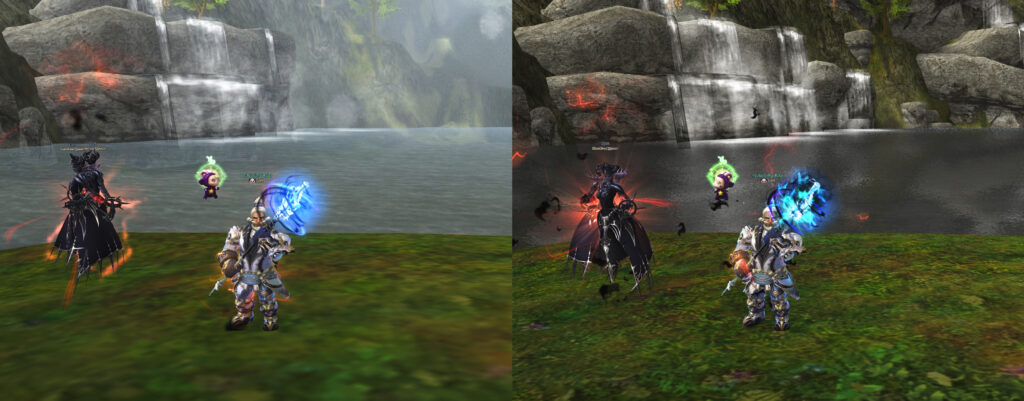
Table of Contents
WHAT YOU ARE ACTUALLY IMPROVING
The goal here is very clear.
We are not trying to increase performance.
We are trying to improve visual quality.
That means working on three very specific things:
- less aliasing
- better overall sharpness
- cleaner and more stable textures
Put simply, the idea is to make Lineage 2 look less visually broken and much clearer, without turning the image into something soft, blurry, or overloaded.
NVIDIA CONFIGURATION
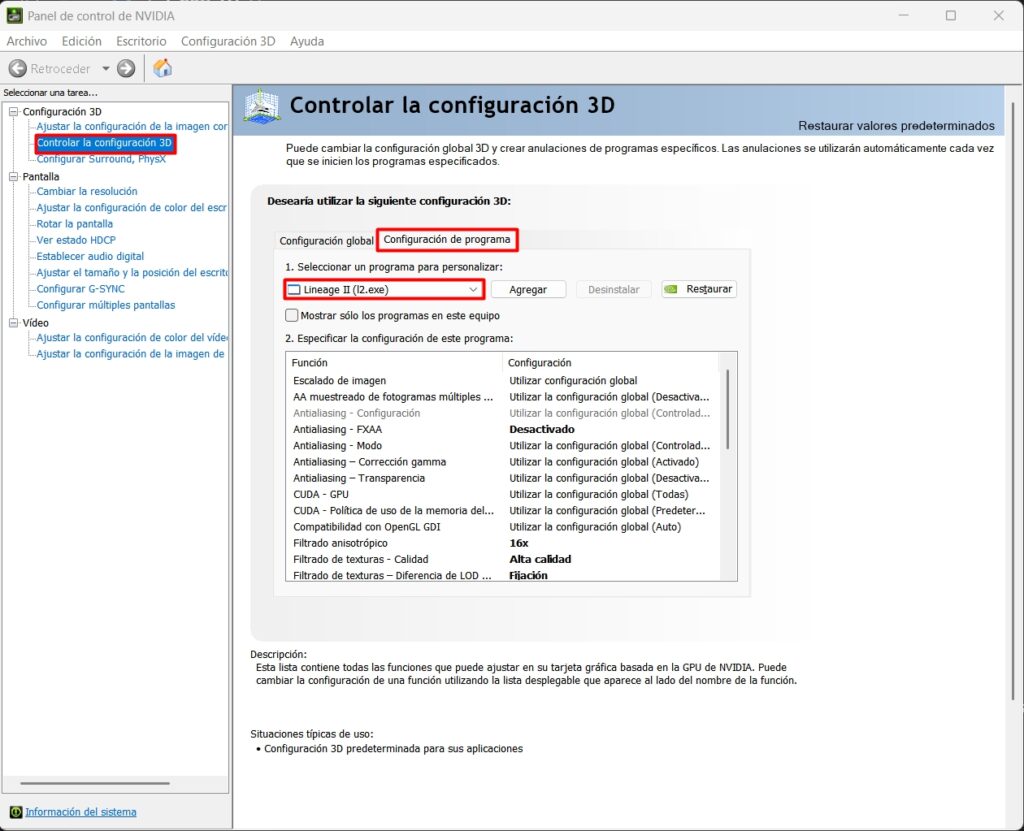
If you use NVIDIA, the correct setup is done through the classic NVIDIA Control Panel.
The correct path is this:
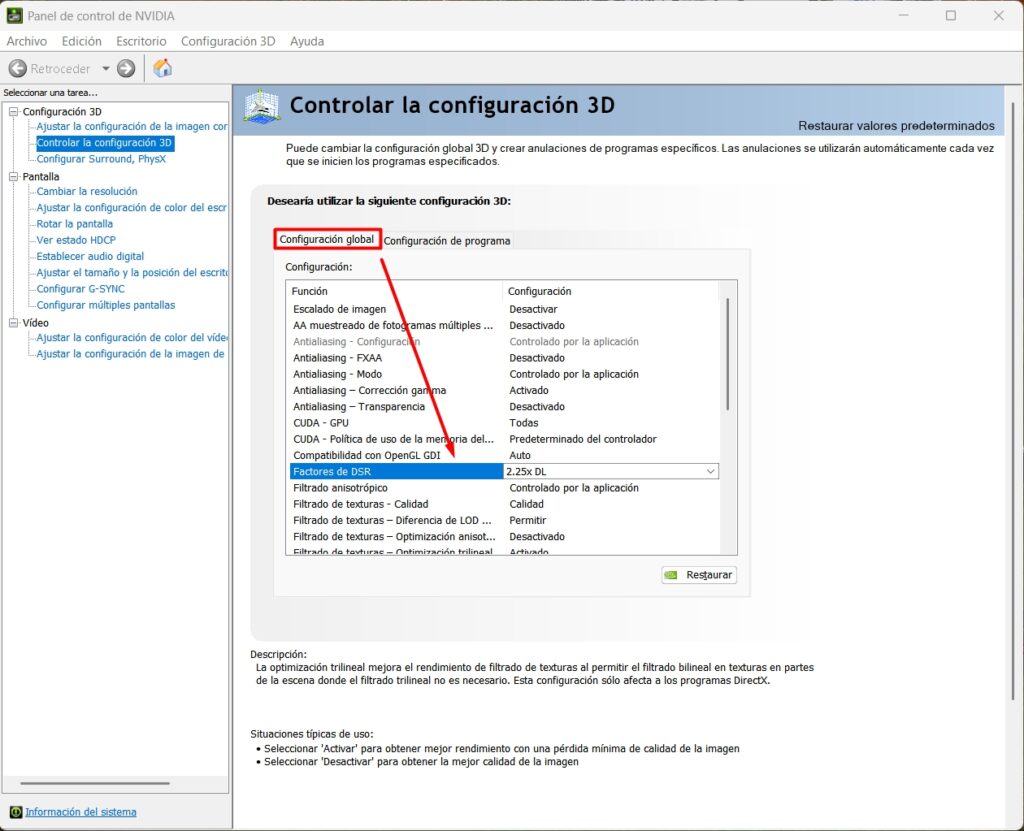
NVIDIA Control Panel > 3D Settings > Manage 3D settings > Program Settings > Select Lineage II
If Lineage II does not appear in the list, add it manually. You can find L2.exe inside the folder where the game is installed, under the system folder.
RECOMMENDED NVIDIA SETTINGS
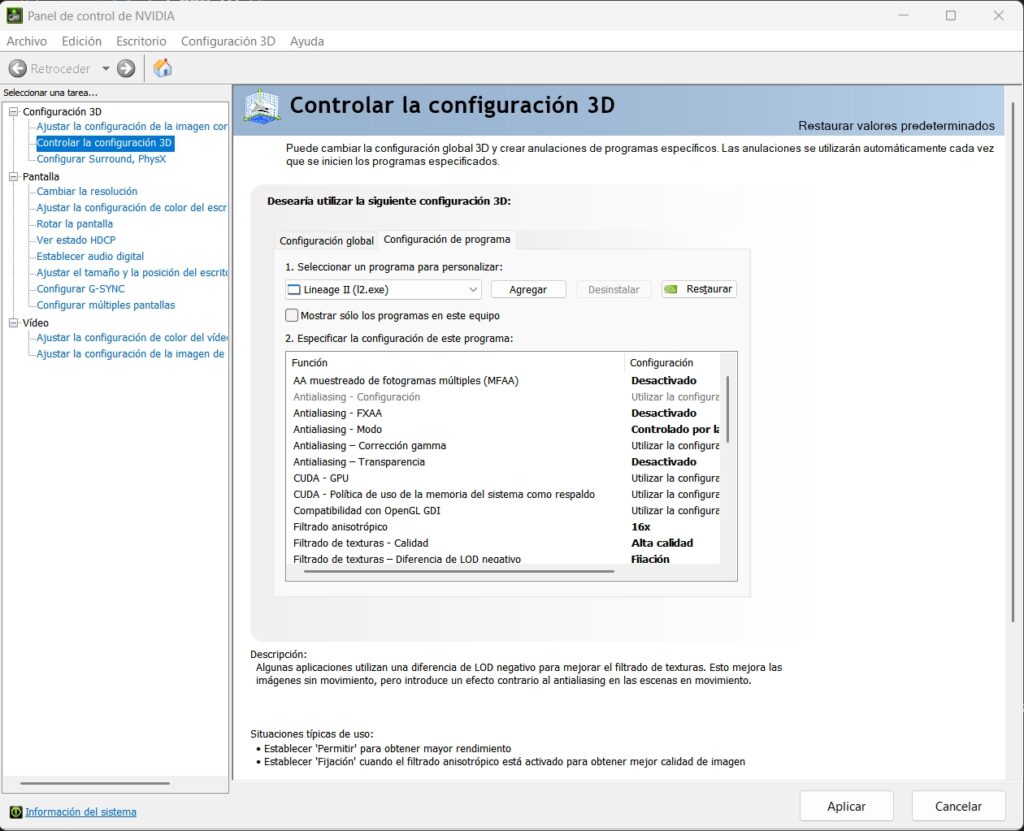
Under the Program Settings tab, leave the profile like this:
- Image Scaling: Off
- Multi-Frame Sampled AA (MFAA): Off
- Antialiasing – FXAA: Off
- Antialiasing – Mode: Application-controlled
- Antialiasing – Transparency: Off
- Anisotropic Filtering: 16x
- Texture Filtering – Quality: High quality
- Texture Filtering – Negative LOD Bias: Clamp
- Texture Filtering – Anisotropic Sample Optimization: Off
- Texture Filtering – Trilinear Optimization: Off (if available)
ADVANCED NVIDIA SETTING (OPTIONAL)
DSR on NVIDIA is an optional improvement for users who already have good performance and want to push image quality a step further. It is not necessary for every player, but it is recommended if your GPU has plenty of headroom and you want a cleaner, sharper image.
This is the setting that allows Lineage 2 to render above its usual resolution and therefore contributes the most to cleaning up edges, improving sharpness, and reducing visible jagged lines.
This option is recommended for large monitors with resolutions above 1080p.
To apply it:
- DSR Factors: 2.25x DL
WHY THIS CONFIGURATION WORKS
DSR or DLDSR is the setting that allows Lineage 2 to render above its normal resolution and therefore contributes the most to cleaning up edges, improving image definition, and reducing visible aliasing.
Then comes anisotropic filtering at 16x, which greatly improves surfaces viewed at an angle, such as floors, roads, walls, and many environmental details.
On top of that, setting texture filtering to High quality and Negative LOD Bias to Clamp helps keep the image more stable and less noisy.
By contrast, filters such as FXAA or MFAA are usually not the best foundation for this game if what you want is better image quality. In many cases, they soften the image too much and leave a blurry look that is simply not worth it.
AMD CONFIGURATION
If you use AMD, the correct setup is done through the classic NVIDIA Control Panel.
The correct path is this:
AMD Software: Adrenalin Edition
Gaming or Graphics
Game profile or graphics settings
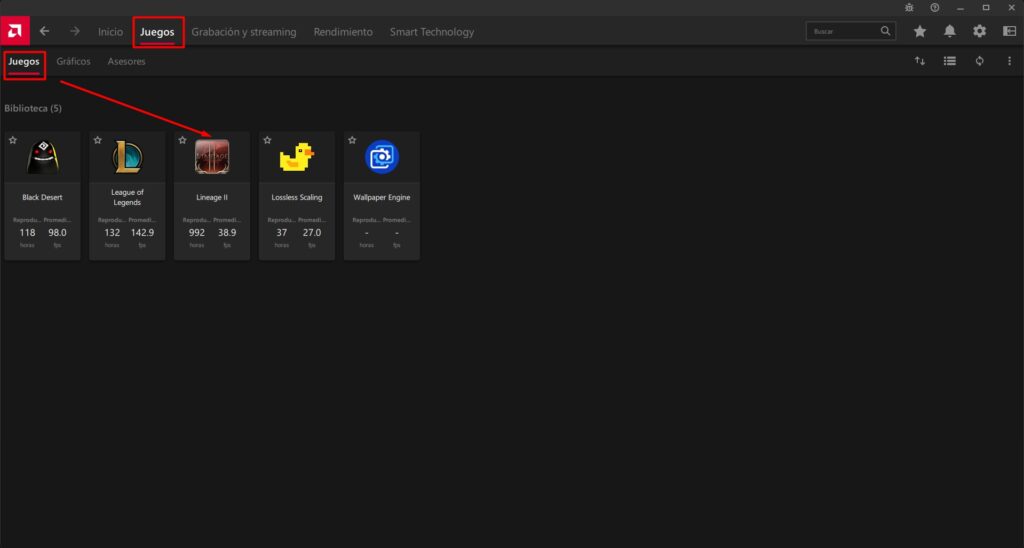
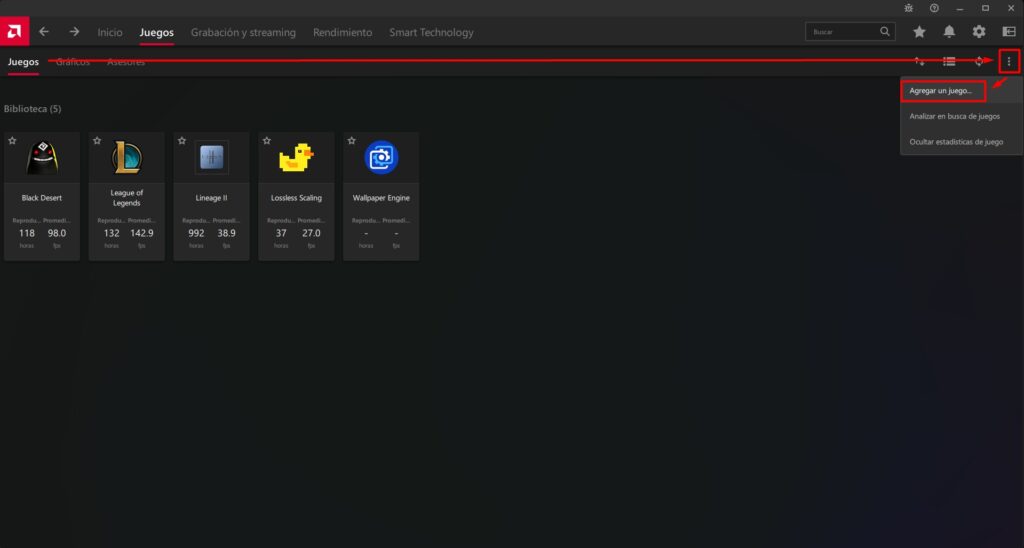
If Lineage II doesn’t appear or a server that isn’t yours appears, you can add it.
RECOMMENDED AMD SETTINGS
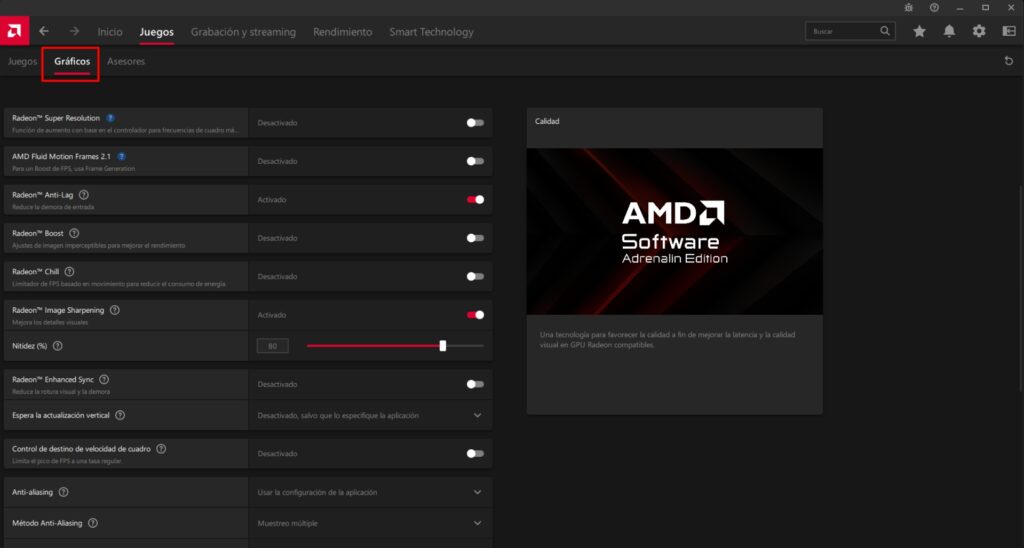
Leave the game profile like this:
- Anisotropic Filtering: Enabled
- Anisotropic Filtering Level: 16x
- Radeon Image Sharpening (RIS): Enabled
- Morphological Anti-Aliasing: Disabled
- Radeon Super Resolution (RSR): Disabled for this guide
ADVANCED AMD SETTING (OPTIONAL)
VSR on AMD is an optional improvement for users who already have good performance and want to push image quality a step further. It is not necessary for every player, but it is recommended if your GPU has plenty of headroom and you want a cleaner, sharper image.
It allows the game to render above the monitor’s native resolution and then downsamples the image to improve clarity and definition.
This option is recommended for large monitors with resolutions above 1080p.
To apply it on AMD:
- Virtual Super Resolution (VSR): Enabled
WHY THIS CONFIGURATION WORKS
VSR allows the game to render above the native resolution and then downsample the image to improve clarity and sharpness.
After that, forcing anisotropic filtering to 16x is one of the safest and most effective upgrades you can make in an old game like Lineage 2.
And as a finishing touch, Radeon Image Sharpening helps restore clarity and crispness to the final image.
On the other hand, Radeon Super Resolution is not the right approach here, because it is more performance-oriented than image-quality oriented. Morphological Anti-Aliasing is also not the best foundation for this guide, because the goal here is not simply to smooth the image, but to genuinely improve render quality.
THE MISTAKE ALMOST EVERYONE MAKES
This is the classic mistake.
People enable DSR, DLDSR, or VSR in the GPU driver, launch the game, change nothing else, and then conclude that it does not work.
But that is not how it works.
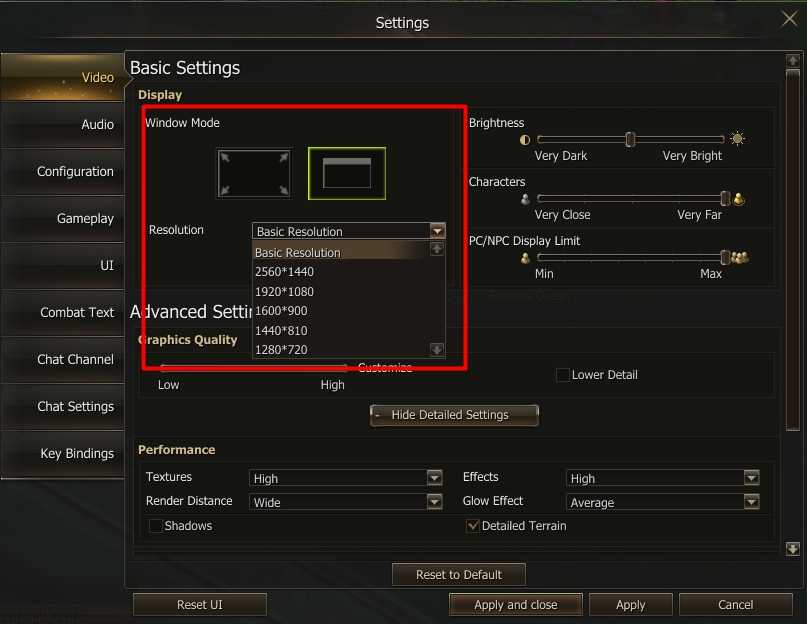
After enabling super resolution in the driver, you have to enter Lineage 2 and manually select a higher resolution inside the game client.
If you do not do that, in some cases the change will be barely noticeable or will not apply properly at all.
SETTINGS INSIDE LINEAGE 2
Once the important part is done through the GPU driver, it is time to finish the job inside the game itself.
The goal here is to keep the image clean and visually solid, without filling the screen with effects that only make it look messier.
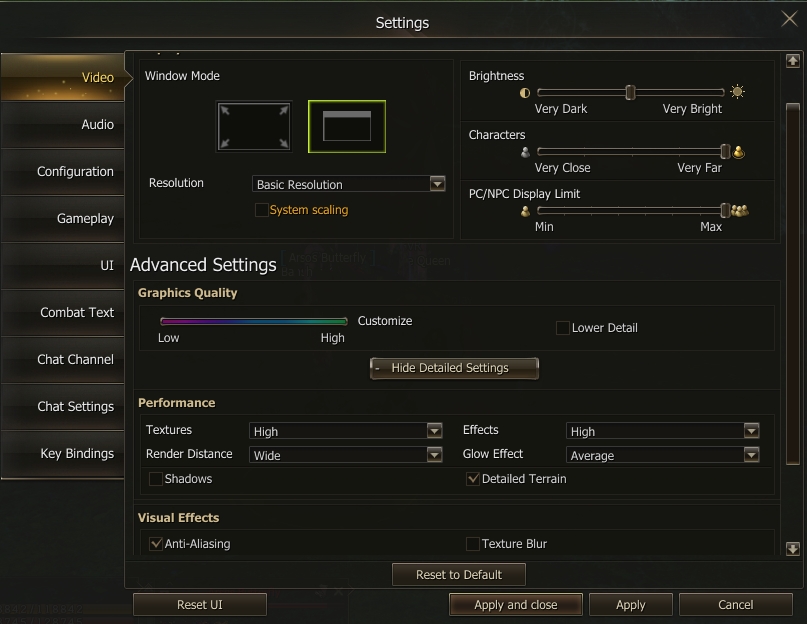
This is a very good baseline to start from:
Textures: High
Render Distance: Wide
Effects: High
Glow Effect: Average
Shadows: Off
Detailed Terrain: Enabled
WHY THIS COMBINATION WORKS
High textures help the game avoid looking cheap.
A wide render distance improves the overall feel of the environment quite a lot.
High effects keep the game visually present without turning the image into a festival of visual noise.
Glow Effect should stay under control, because if you overdo it, it can clutter the scene and make everything look more confusing.
And shadows in Lineage 2 usually add less than they hurt. They do not beautify the game as much as in modern titles, and they often make the image look dirtier instead.
WHAT HAPPENS IF YOU PLAY IN WINDOWED MODE
There is an important detail here.
In some cases, after enabling a higher resolution, the game may display it correctly only in windowed mode, or it may simply work better that way.
The issue is that this new higher resolution may cause the window not to automatically fill the monitor, making the client look smaller.
That does not mean the configuration is wrong.
It means the game is accepting the new rendered resolution, but it does not automatically resize the window on its own.
The solution is simple: manually enlarge the window until it matches the screen edges.
It is not perfect, but if the visual improvement is clear, it usually makes up for it.
THE SETTINGS THAT REALLY CHANGE THE IMAGE
If the entire guide had to be reduced to what actually matters most, it would be this.
On NVIDIA, the most important settings are:
- DSR or DLDSR
- 16x anisotropic filtering
- High quality texture filtering
On AMD, the most important settings are:
- VSR
- 16x Anisotropic Filtering
- Radeon Image Sharpening
Everything else is secondary compared to those settings.
WHAT I WOULD NOT DO
I would not enable FXAA just to experiment without a clear reason.
I would not mix performance-oriented scaling methods with settings designed for maximum image quality.
I would not change ten different filters at the same time and then have no idea which one actually improved the image.
I would not flood the game with glow, shadows, and exaggerated effects thinking that this automatically makes it look better.
And above all, I would not enable supersampling in the GPU driver and then continue using the same old in-game resolution.
CONCLUSION
If Lineage 2 already runs well on your system, the best visual upgrade is not about chasing more performance.
It is about making the game render better.
And for that, both NVIDIA and AMD have tools that can make a real difference when used correctly.
The formula that works best is this:
- super resolution through the GPU driver
- high anisotropic filtering
- texture settings focused on quality
- a higher resolution selected inside the game
With that, Lineage 2 will still be an old game, yes, but it can look far cleaner, more solid, and much more pleasant to play.
How do you improve Lineage 2 visual quality?
The most effective way is to make the game render at a higher resolution through the GPU driver and then select that new resolution inside the game client. On NVIDIA, this is done with DSR or DLDSR, and on AMD it is done with VSR. It also helps to combine this with 16x anisotropic filtering and in-game settings focused on image quality.
What is DSR on NVIDIA and what does it do in Lineage 2?
DSR, and its DLDSR variant, allows the game to render above the monitor’s native resolution and then downsample the image back to screen size. This improves edge cleanliness, reduces jagged lines, and increases overall sharpness.
What is VSR on AMD and why does it improve image quality?
VSR, or Virtual Super Resolution, does on AMD what DSR does on NVIDIA. It lets Lineage 2 render at a higher resolution and then downsample the image, resulting in a cleaner, sharper, and more stable presentation.